 Kerylos Labs
Home › Sales Reports for Sheets™ › Guide
How to export Square sales to Google Sheets™
Get your Square sales, items, fees and tips into a spreadsheet: the manual CSV way, and the way that keeps itself up to date.
Short answer: Square has no built-in sync to Google Sheets. You can export a CSV from in your Square Dashboard and import it with in Google Sheets, but you’ll repeat that every week. A free add-on like Sales Reports for Sheets connects to Square once (read-only) and builds the reports straight into your sheet.
Method 1: Export a CSV from Square and import it
Free and built in. Good for a one-off look at your numbers.
Step 1: Export from your Square Dashboard
- On a computer, sign in to your Square Dashboard in a web browser.
- Go to and pick the date range and location you want.
- Click and choose a file:
- Transactions CSV: one row per sale, with totals, tax, tips, discounts, fees and payment type.
- Item Details CSV: one row per item sold, with the sale’s ID repeated on every line.
- The file downloads to your computer.
Step 2: Import it into Google Sheets
- Open a new Google Sheet (type sheets.new in your browser’s address bar).
- Click and choose the CSV you downloaded.
- Under Import location, pick , then click .
Step 3: Turn it into a report
The raw export is one long table, so the answers you want still need work:
- Sales per day: a pivot table on the date column ().
- Best sellers: a pivot table on the Item Details CSV, grouped by item.
- Busiest hours: a helper column that pulls the hour out of the time, then a pivot by weekday and hour.
- Card fees and net: sum the fee column and subtract it from collected sales.
Watch out: don’t add up the tax or total columns in the Item Details CSV. Each sale’s values repeat on every item line, so the sums come out too high. Use the Transactions CSV for sale totals.
The catch
Next week, you do it all again: export, import, paste over last week’s data and fix any pivot tables that broke. With more than one location, you repeat it per location or untangle a combined file.
Method 2: Connect Square to Google Sheets with an add-on
Sales Reports for Sheets is a Google Sheets add-on made for this job. You connect Square once, and it builds ready-made report tabs in your own sheet.
- Install Sales Reports for Sheets from the Google Workspace Marketplace and open it from in any Google Sheet.
- Connect Square and approve read-only access. The add-on can see your sales, but can’t change anything in Square.
- Pick a location and period, then click . Your report tabs appear in a few seconds.
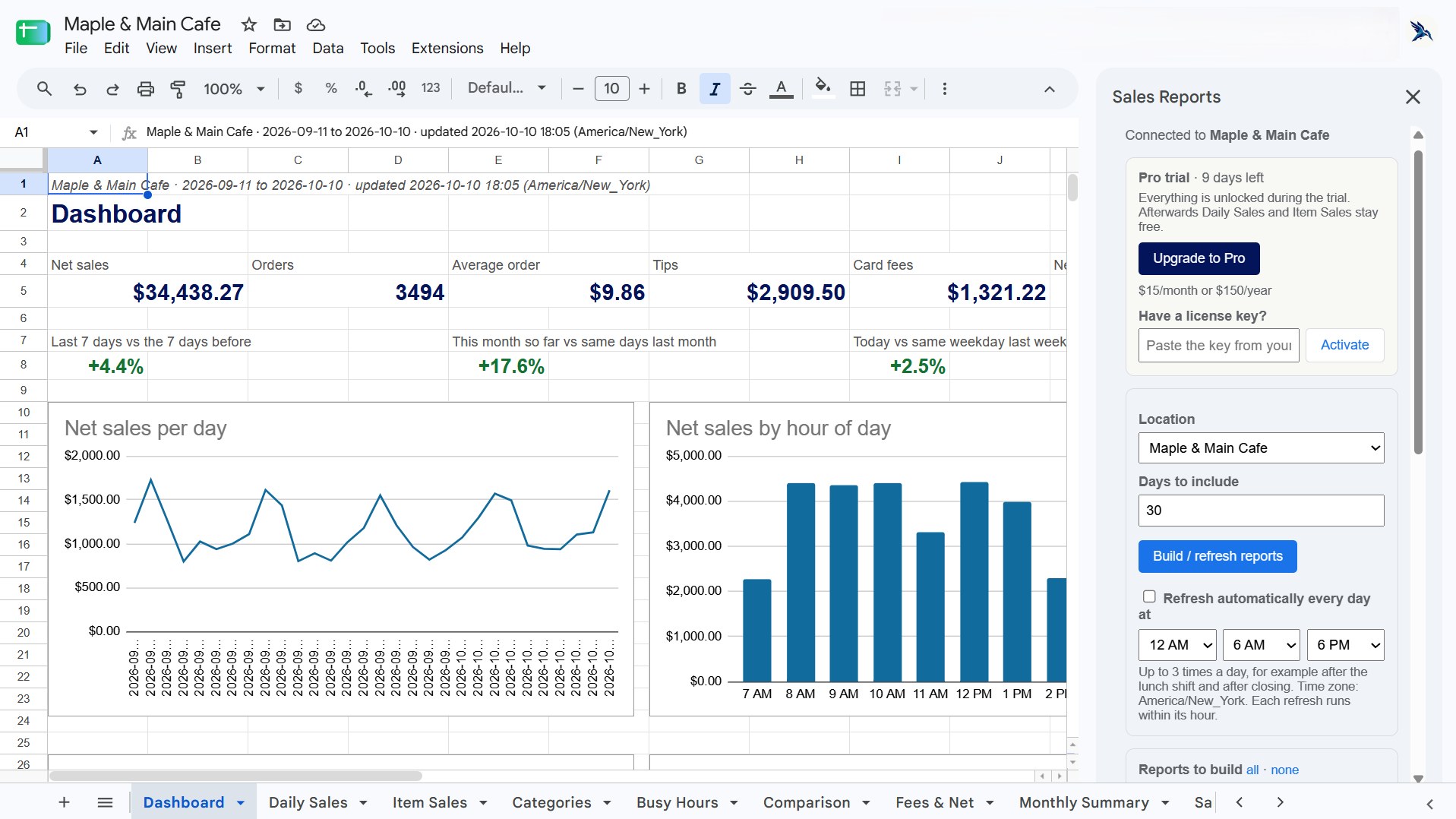
What you get instead of pivot tables
- Daily Sales: orders, sales, discounts, tax, tips, refunds and payment types per day.
- Item Sales and Categories: what sells, and what’s just taking up menu space.
- Busy Hours: a weekday-by-hour heatmap, for staffing and opening hours.
- Fees and Net: what card fees really cost you, day by day.
- Comparison: today, this week and this month against the period before.
- Raw Orders: one row per order, for your own formulas and charts.
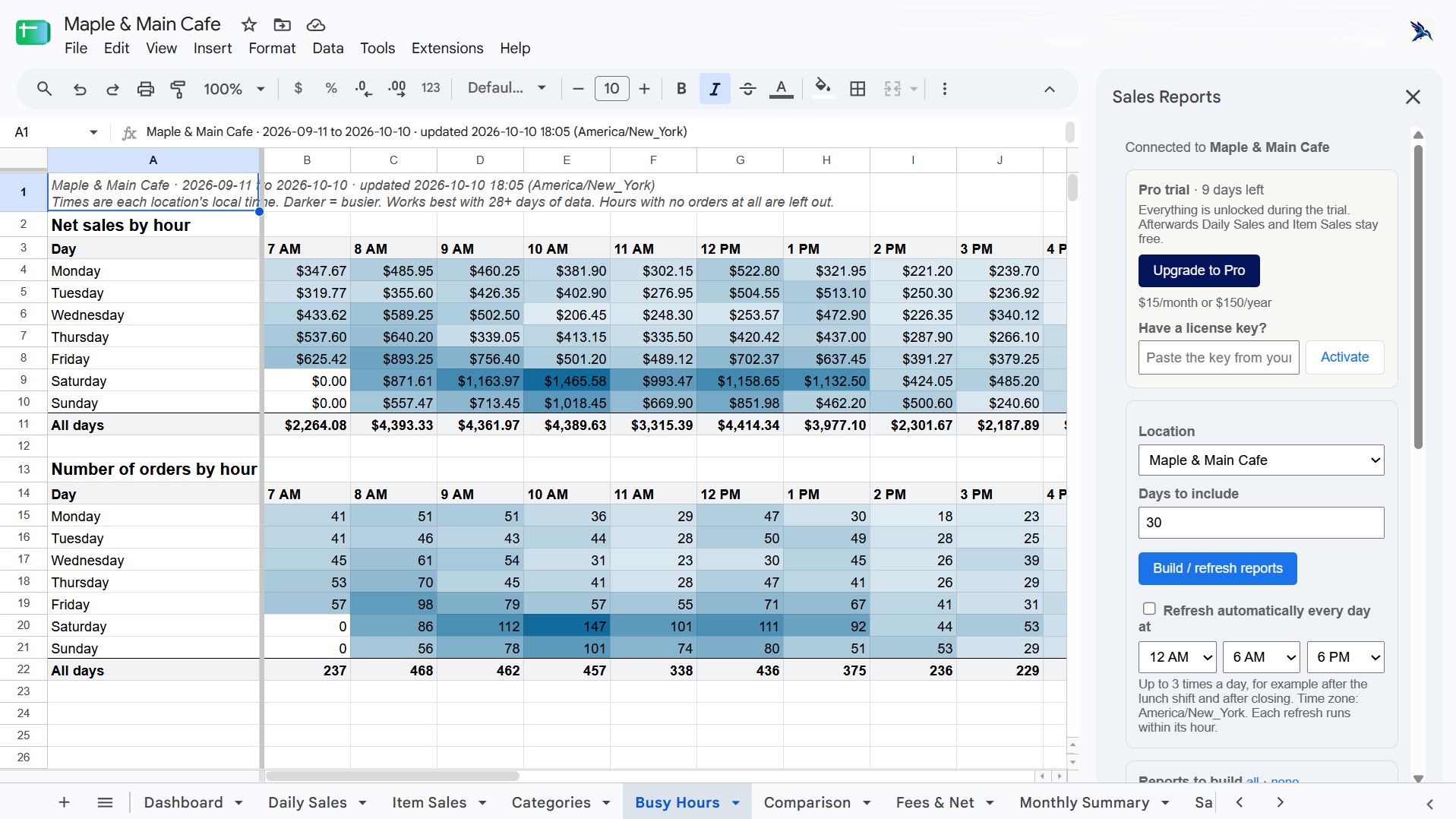
Free plan: Daily Sales and Item Sales for one location, last 30 days, refreshed when you click Build. Pro ($15/month) adds all 14 reports, every location, up to 365 days of history and automatic refreshes up to 3 times a day. New users get 14 days of Pro free, no card needed.
Which method should you use?
| CSV export | Sales Reports for Sheets | |
|---|---|---|
| Cost | Free | Free plan; Pro $15/month |
| Time each week | 15–60 minutes | One click, or none with Pro |
| Ready-made reports | No, build your own | Yes, up to 14 |
| Several locations | Export or untangle each one | Side by side (Pro) |
| Stays up to date | No | Yes, up to 3 times a day (Pro) |
| Your own formulas and tabs | Yes | Yes, they survive a refresh |
Questions
Can Square export directly to Google Sheets?
Not on its own. Square’s Dashboard exports CSV files, which you then import into Google Sheets. To skip that step, use an add-on that connects to Square, like Sales Reports for Sheets.
Which Square CSV should I export?
For totals per sale (sales, tax, tips, fees), the Transactions CSV. For what was sold, the Item Details CSV. Most reports need both.
Why don’t my spreadsheet totals match the Square Dashboard?
Usually because of refunds, time zones, or how gross and net sales are defined. Our help guide explains why numbers can differ and how to compare them.
Is it safe to connect Square to Google Sheets?
Sales Reports for Sheets asks for read-only access, so it can’t change anything in Square. Your sales go from Square straight to your own sheet, not through Kerylos Labs’ servers, and are never sold.
Does it work outside the US?
Yes: in the United States, Canada, the United Kingdom, Ireland and Australia.
Do I need to be good with spreadsheets?
No. The reports are ready-made. If you like spreadsheets, the Raw Orders tab gives you every order to build on.