 Kerylos Labs
Home › Sort Paragraphs & Lists › Guide
How to alphabetize in Google Docs™
Sort a bulleted list, a numbered list or plain paragraphs A → Z (or Z → A) in a couple of clicks.
Short answer: Google Docs™ can sort tables, but it has no built-in way to alphabetize lists or paragraphs. The quickest fix is a free add-on: select your list, then click . If you can’t install add-ons, copy the list into Google Sheets™, sort it there and paste it back.
Method 1: Use the free Sort Paragraphs & Lists add-on
The best option when your list has formatting, numbering or sub-items, because it keeps all of them.
- Install the add-on from the Google Workspace Marketplace. It’s free and needs no account.
- Open your document in Google Docs on a computer.
- Select the list or paragraphs you want in order. You can also select the whole document: headings stay put and each list is sorted on its own.
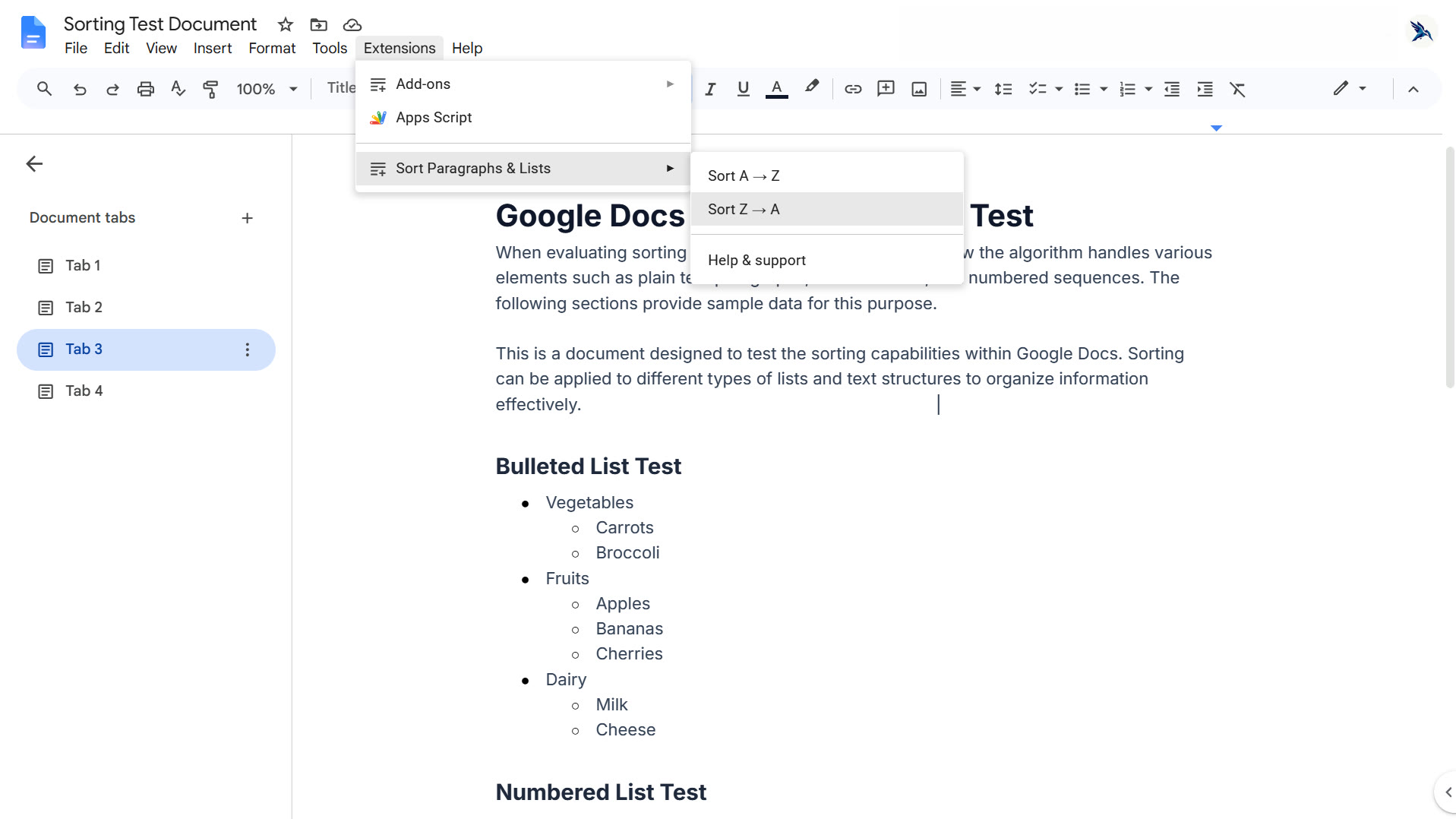
- Click → → , or for reverse order.
- Done. Changed your mind? Press Ctrl+Z (Cmd+Z on a Mac) to undo.
What it does for you
- Keeps sub-items with their parent, and sorts the sub-items too.
- Keeps formatting: bold, italics, links, bullet styles and numbering move with each line.
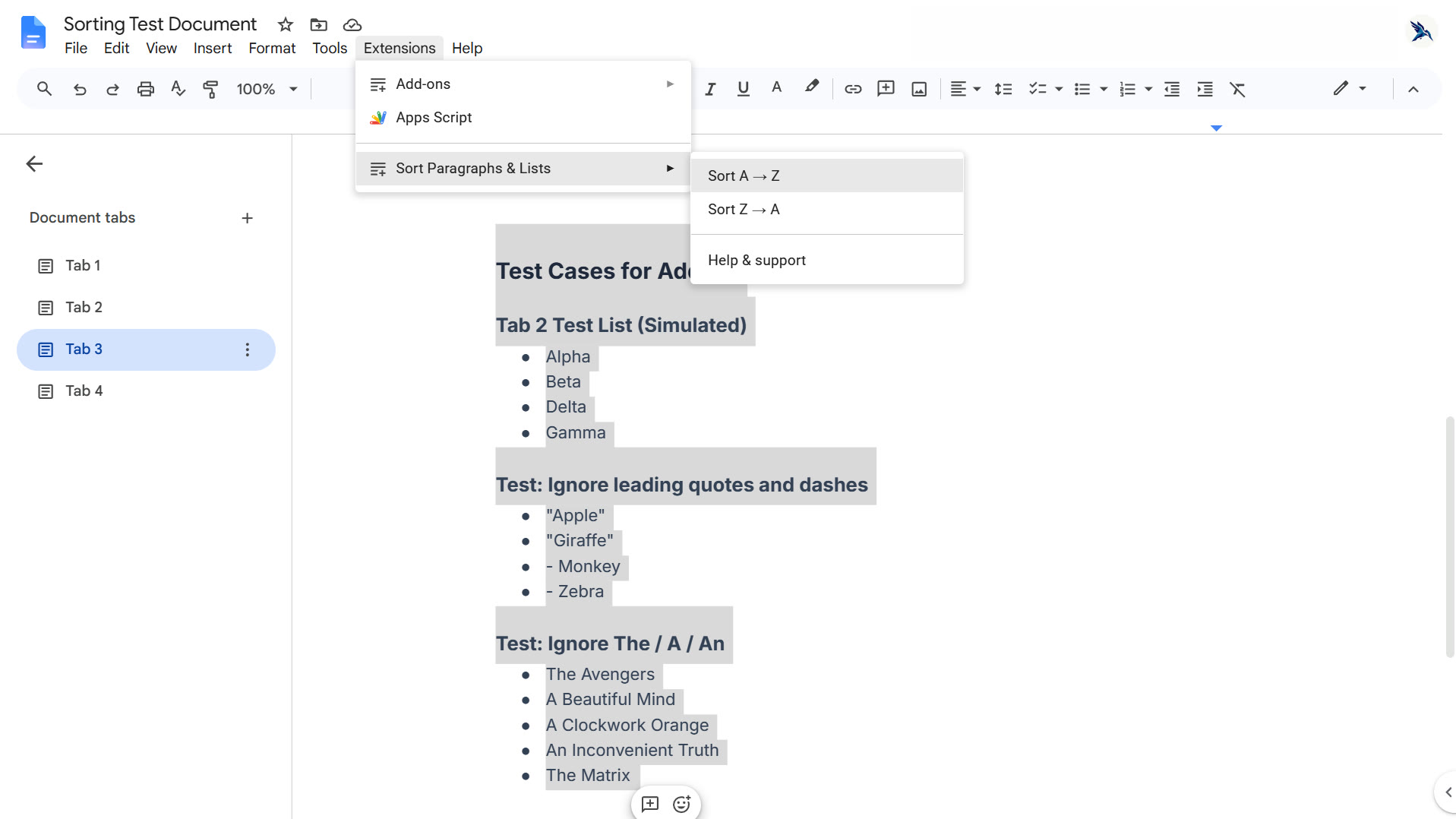
- Sorts the way you’d expect: “Item 2” comes before “Item 10”, “The Matrix” files under M, and leading quotes and dashes are ignored.
- Works for bibliographies: reference lists and works cited pages in APA, MLA or Chicago order.
- Only touches the open document. Your text is never sent to Kerylos Labs or any third party.
Method 2: Sort the list in Google Sheets and paste it back
Works without installing anything. Fine for a short, plain list, but it removes bullets, numbering and nesting.
- In Google Docs, select your list and copy it (Ctrl+C).
- Open a new Google Sheet (type sheets.new in your browser’s address bar) and click cell A1.
- Paste with Ctrl+Shift+V, so each line lands in its own row as plain text.
- Select column A, then click .
- Copy the sorted cells, go back to your document and paste them over the old list.
- Re-apply bullets or numbering from the toolbar if you need them.
If your list has sub-items, they get sorted in with everything else. Use Method 1 to keep them under their parent.
Which method should you use?
| Add-on | Google Sheets trick | |
|---|---|---|
| Clicks | 2 | About 10 |
| Keeps bullets and numbering | Yes | No, re-apply by hand |
| Keeps sub-items under their parent | Yes | No |
| Keeps bold, links and colors | Yes | No |
| Z → A order | Yes | Yes |
| Install needed | Yes, free | No |
Sorting a table instead?
Google Docs does that on its own: right-click the table and choose . The add-on is for paragraphs and lists.
Questions
Can Google Docs alphabetize a list on its own?
No. Google Docs can sort the rows of a table, but it has no built-in option to sort paragraphs or bulleted and numbered lists. You need an add-on or the Google Sheets workaround above.
How do I sort a list in reverse (Z to A)?
With the add-on, choose Extensions → Sort Paragraphs & Lists → Sort Z → A. In Google Sheets, use Data → Sort range and pick Z to A.
Will sorting keep sub-items under their parent?
The add-on moves each item together with its sub-items, and sorts the sub-items too. The Google Sheets method flattens the list, so nested items get mixed in with the rest.
Can I alphabetize in the Google Docs mobile app?
Not with an add-on: Google Docs add-ons only run in a desktop browser. Open the document on a computer to sort it.
The “Sorted Paragraphs” add-on stopped working. What now?
Sort Paragraphs & Lists does the same job and is actively maintained. Install it from the Marketplace and use it from the Extensions menu.
Is it free?
Yes. No account, no trial and no limits on how often you sort. It only accesses the document you have open.